Automatic LAMP (Linux, Apache, MySQL and PHP) In about 15 minutes, the time it takes to install Ubuntu Edgy Server Edition, you can have a LAMP server up and ready to go. This feature, exclusive to Ubuntu Server Edition, is available at the time of installation.
The LAMP option saves the trouble of installing and integrating each of the four separate LAMP components, a process which can take hours and requires someone who is skilled in the installation and configuration of the individual applications. You get increased security, reduced time to install, and reduced risk of misconfiguration, all of which results in a lower cost of ownership.
Ubuntu LAMP server Install the following Versions
Ubuntu Edgy Eft 6.10
Apache 2.0.55
Mysql 5.0.24a
PHP 5.1.6
First you need to download server version of Ubuntu version from here after that you create a CD and start booting with the CD Once it starts booting you should see the following screen in this you need to select second option “Install to the Hard disk Option” and press enter

Choose you language and press enter you can see we have selected english in the follwoing screen

Choose your location and press enter you can see we have have selected United Kingdom in the follwoing screen

If you want to try to have your keyboard layout detected by pressing a series of keys you need to select yes option and if you don’t want that and you want to choose from a list click no in this example we have selected no and press enter

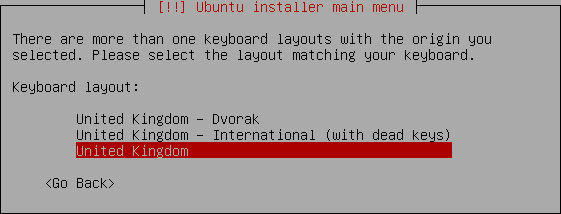
Select Origin of keyboard and press enter

Select keyboard layout and press enter
Detecting hardware to find CD-ROM Drivers in progress

Scanning CD-ROM in Progress

Loading additional components progress bar

Configures the network with DHCP if there is a DHCP server in the network

Enter the Hostname of the system so in this example i enter here as ubuntulamp

Detecting Disks and Hardware in progress

Startingup the partitioner in progress

you have to partition your hard disk in this i have selected manually edit the partition table and press enter

It will show you the hard disk space and press enter here i am using vmware with 10.7GB of space

Create a New partition table on the device select yes and press enter

Now you can see the freespace and press enter

How to use this freespace select create a new partition and press enter

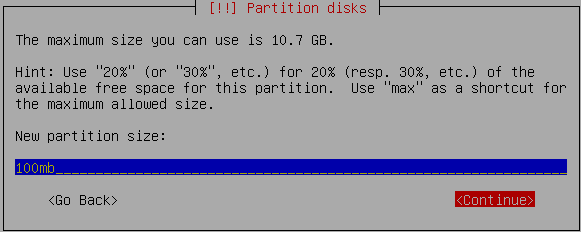
Enter the new patition size and press continue i have entered 100mb in this example
Select the type of the partition and press enter in this example i have selected primary

Location for the new partition as begining and press enter

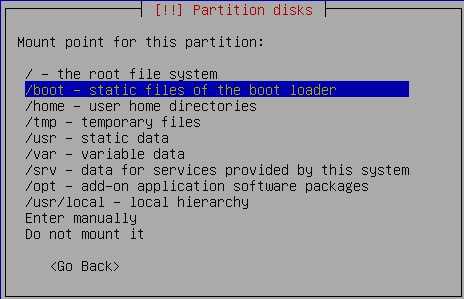
Now you need to select the mount point with the following screen and press enter to change mount point

Now you can see the available mount points and here i have selected /boot mount point and press enter
Now you should see the following screen and here you need to select “Done Setting Up the Partition” option and press enter This will create the /boot mount point with 100mb of space and you can create the / mount point in the same way with the existing space.

you can see this in the following screen here you need to select “Finish partitioning and write changes to disk” option and press enter

Write the changes to disk option here you need to select yes and press enter

Creating ext3 filesystem in progress

Configuring the clock option here if you want to leave UTC Select yes otherwise no and press enter

You need enter the Full name of the user you want to create for your server in this example i have created administrator user select continue and press enter

username for your account in this i have entered test select continue and press enter

Entered the password for test user select continue and press enter
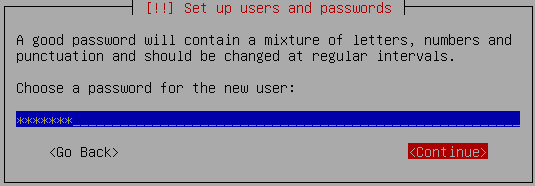
Confirm the password for test user select continue and press enter

Installing the base system in progress

Configuring package mirror this will be related to your country option

Now it will start Installing software and here you need to select the server options if you want DNS or LAMP i have selected as LAMP for our LAMP server installation

Software Installation in Progress

Installing GRUB Boot loader in progress

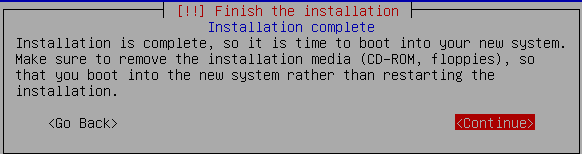
Installation complete message here you need to remove your CD select continue and press enter it will reboot your server
After rebooting you can see the following screen prompt for username

This will complete the Ubuntu LAMP Server Installation and your server is ready for installing applications which supports apache,mysql and php.
Enable root Account in Ubuntu server (Not Recommended for security Reasons this is just Optional)
After the reboot you can login with your previously created username (test). Now we will enable the root account using the following command
sudo passwd root
and give root a password.
Now onwards we become root by running the following command
su
Configuring Static ip address in Ubuntu server
Ubuntu installer has configured our system to get its network settings via DHCP, Now we will change that to a static IP address for this you need to edit Edit /etc/network/interfaces and enter your ip address details (in this example setup I will use the IP address 172.19.0.10):
sudo vi /etc/network/interfaces
and enter the following save the file and exit
# The primary network interface
auto eth0
iface eth0 inet static
address 172.19.0.10
netmask 255.255.255.0
network 172.19.0.0
broadcast 172.19.0.255
gateway 172.19.0.1
Now you need to restart your network services using the following command
sudo /etc/init.d/networking restart
You need to setup manually DNS servers in resolv.conf file when you are not using DHCP.
sudo vi /etc/resolv.conf
You need to add look something like this
search domain.com
nameserver xxx.xxx.xxx.xxx
Install SSH Server
If you want to access your server remotely through SSH you need to install SSH server for this you need to run the following command
sudo apt-get install ssh openssh-server
You will be prompted to insert the installation CD again and this will complete SSH server in your edgy lamp server.
This is really simple and easy server installation for new users and who wants a quick server.
One small Observation i have noticed in edgy LAMP installation and dapper LAMP installation was choosing LAMP server option is available in dapper at the time of booting your server CD and in edgy you need to select LAMP server option at the time of software installation.
This might be useful for users who might think there is no LAMP server option at the time of start booting their Edgy server CD.
After completing your Edgy LAMP Server Installation some of users may not be comfortable with command prompt for those users they can install webmin for their server web interface to configure apache,mysql servers.You can check here for webmin tutorials
Before purchasing los angeles real estate, make sure that you remember checking account as well as the conditions of home insurance since you might get a better deal at the atlanta homes for sale.
hi.
thank you for this great quick-entry-tut.
maybe you could drop a line about the missing ‘swap’-partioion.
at least it’s something that comes up when finishing partitioning and may leave linux-novices such as me kind of unsettled – since i can imagine swapping is not wanted for server?
tnx!
Hello,
Please help me!
I’m new with ubuntu and i have a question to make.
I install ubuntu Edgy eft 6.10 server on my notebook, this version have graphic mode?
After the instalation i only have text mode.
Thanks!
Magoo
If you want to install GUI follow these steps
you need to make sure you have enabled universe and multiverse resposities in your source list file /etc/apt/sources.list i.e uncomment the following lines
deb http://archive.ubuntu.com/ubuntu edgy multiverse
deb-src http://archive.ubuntu.com/ubuntu edgy multiverse
deb http://archive.ubuntu.com/ubuntu edgy universe
deb-src http://archive.ubuntu.com/ubuntu edgy universe
once you enable save the file and exit
update the source list
sudo apt-get update
and run
sudo apt-get install ubuntu-desktop
Total newb here. Checked out the Ubuntu website… will this work on my 32bit AMD?
If so, once it’s installed, how about upgrading the php version – do we have to recompile with the current release (5.2) or is there a way to update over top?
I ran into two problems. First I think I fell into the ASCI graphics pitfall of not pressing spacebar on the LAMP
because I’m missing the AMP part of it. Second, when I try to run a locate command in edgy it gives an error
referencing a database (sorry had to leave my box and come to work so I can afford to play with it more). This is my
first time doing a server install, and I might of taken the locate command for granted…anyone encounted problems
with locate after attempting to do a edgy/server install?
Rick Burque Says:
November 13th, 2006 at 4:47 pm
How about automated install of LAMP with PostgreSQL as an option instead of MySql?
More Robusto…
Because then it would be a LAPP Server.
For everyone having problems with Vi, try Nano to edit your files. It’s a little easier to use.
I installed Ubuntu server 6.10. If I want to browse on the web to download something from a web site, how do I do this? Since Ubuntu Server doesn’t have GUI, I don’t have a web browser to surf the Internet. Or, am I missing something?
@geoff
if you want to install gui for your server you need follow this procedure
1) Make sure you have enabled universe,multiverse repositories enabled in /etc/apt/sources.list file
2)update the source list
sudo apt-get update
3)install gui
sudo apt-get install ubuntu-desktop
or
you can use wget to download the file
example
wget filelocation
wget http://ftp.gnu.org/gnu/test/test-1.10.2.tar.gz
Thank you, Admin. It worked. It was a big download but it started beautifully with startx. Thank you so much!
A very thorough guide (and very much needed!) Bookmarked as I know I’ll keep coming back.
I suppose it’s not a major problem but a not expected phenomenon – my Ubuntu LAMP server installation is slow to log on from a Windows terminal. I have installed OpenSSH and removed the “bind-to-localhost-IP” line in the config. I use PuTTY on the Windows (XP) box to communicate with the Ubuntu server. It always takes about 20 seconds from opening the connection to the request for the password. From then on, commands seem to run in “real time”.
Likewise, when I use the Windows MySQL client to connect to the Ubuntu server, it takes about 20 seconds for the connection to establish.
Is such delay normal ? What’s going on during that 20 seconds ?
Any clues much appreciated.
I am able to see the that mysql and Apache are running using ps -ef, but i cannot login using msql or mysqladmin. it say that i need to install client. I have done the Lamp installation, all the web pages are workng. but i can’t seem to login in mysql. Please help.
try to type the following command in the terminal
mysql
and let me know what error message you are getting
When I used
sudo apt-get update
“temporary failure resolving” appears row by row
and in the end
“reading package list …..done”
“w: some index files failed to download, they have been ignored, or old ones uses instead”
Whats wrong, I checked connection with ping and success.
Help me please.
My problem “temporary failure resolving” solved now.
I just edit nameserver in “etc/resolv.conf” from “xxx.xxx.xxx.xxx” to my ip gateway.
Now update on processing.
Hey you know that if you have only 128mb ram and want to install the lamp ubuntu edgy 6.10, you can configure the boot option and where it says 168020 or something for ram, just edit the 6 into a 2. So then you can install it. =]
Excellent tutorial! I got my Ubuntu to work thanks. 🙂
hi i have ubuntu server 7.10 running on a vmware for testing propose.
I am trying to install gui on it.
I did the following steps:
1-Enable universe,multiverse repositories enabled in /etc/apt/sources.list file
remove #
deb http://archive.ubuntu.com/ubuntu edgy multiverse
deb-src http://archive.ubuntu.com/ubuntu edgy multiverse
deb http://archive.ubuntu.com/ubuntu edgy universe
deb-src http://archive.ubuntu.com/ubuntu edgy universe
2- sudo apt-get update
3- sudo apt-get install ubuntu-desktop
and give me the following error «E: impossible to find package ubuntu-desktop»
i have the ubuntu desktop insert on E:
Can some one help me
Thanks
Ok so far the post have been helpful
however my situation is a little different I some how got the ubuntu server 7 to do the gui installation but its not giving me anything than a starting window and the a dark screen
is there anyway I can move beyond this
Note I am as new as they come
@read the comments you can install gui in your server
I’m having a partitioning problem. I’ve never installed a server version of Ubuntu, but have installed desktop versions before. When I manually partion it into a 50 GB partion and follow the onscreen instructions. I make the mount point /boot. But it gives me an error message saying, “No root file system is defined. Please correct this from the partitioning menu.”
I then looked at the images and noticed that the “Mount options” was set to relatime. My option list however does not say default. Could this be the problem? Or is it something else?
Any help would be appreciated.
Never mind, I just made 3 partions. One with ext3 on mount point /boot, the other is a swap file. And the last is just free space. Now I’m stuck at the internet config part. I’m pretty newbish at linux bash commands, but it says the first two lines like the image. “auto etho0 and ip static or whatever.” Then it has blue “~”?! How do I drop down a line and then what is the command to save it? Sorry for being such a newb?
Also, should for the ip should I use the one I use to connect to my router, or another.
Ok, I fixed the text editor problem. For those of you using the vi text editor, which if you follow this guide exactly your are hence the vi command. This is a nice site that explains its command. “http://www.cs.rit.edu/~cslab/vi.html#A1.1” It tells you how to everything you need for this nice tutorial. Now I’m still on the problem of what IP address I should use. Should I use the one that I use to connect to my router or what? All help appreciated.
If you are still trying to use Ubuntu 6.10 Edgy, and are trying to get updates from Ubuntu Repositiories, you must use this URL in the /etc/apt/sources.lst:
http://old-releases.ubuntu.com/ubuntu/ edgy
I hope this helps those of us trying to use old Ubuntu versions today.
how can i install ubuntu dekstop from CD
My problem “temporary failure resolving” solved now.
I just edit nameserver in “etc/resolv.conf” from “xxx.xxx.xxx.xxx” to my ip gateway.
Now update on processing.