Firestarter is an Open Source visual firewall program. The software aims to combine ease of use with powerful features, therefore serving both Linux desktop users and system administrators.
Install Firestarter in Ubuntu
If you want to install firestarter firewall run the following commannd
sudo apt-get instal firestarter
This will complete the installation
If you want to open fire starter go to System—>Administration—>Firestarter

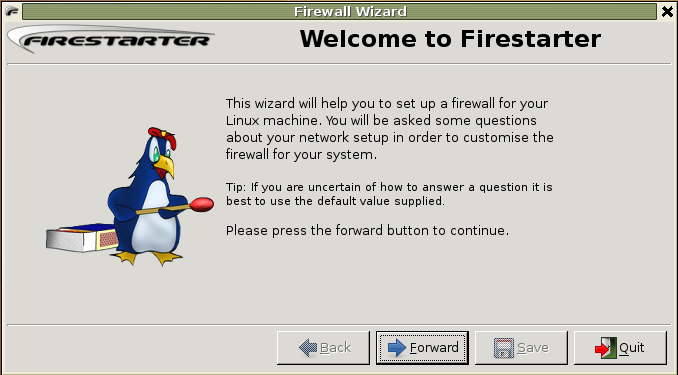
For the first time you should see the following screen and click on forward
Select Network Device setup and click on forward

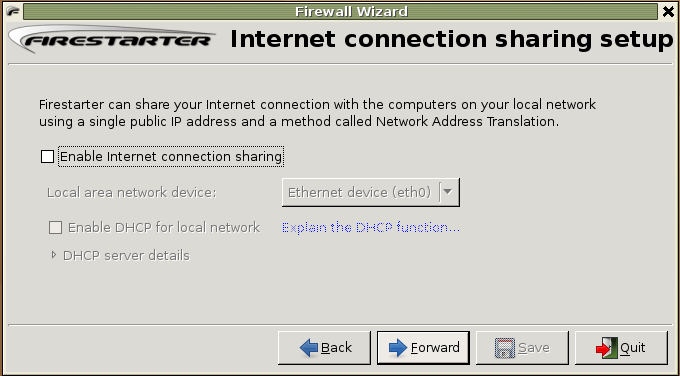
Select if you have any internet connection sharing and click on forward
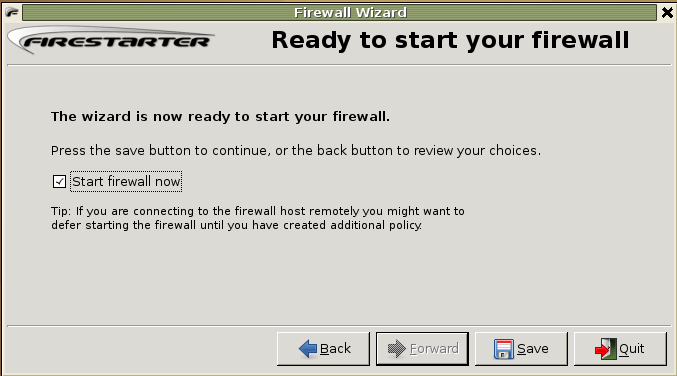
Here you need to click on check box next to start firewall now and click on save
Now you should see the firestarter GUI like below

Every time firestarter starting GUI it will prompt for root password may be this is bit difficult for this you can do the following steps to avoid password.
export EDITOR=gedit && sudo visudo
Now you need to add the following line in /etc/sudoers file
%ruchi ALL= NOPASSWD: /usr/sbin/firestarter
Replace %ruchi by your the name of the user or the group which can use sudo and do the modification.
Now you can test this using the following procedure
sudo – K
sudo /usr/sbin/firestarter
When it try to open it should not prompt for password
Finally you need to add firestarter to startup programs list from system—> Preferences—>Sessions you should see the following screen in this you need to click on startup programs and click on add you should see a popup box prompting for startup command in this you need to enter the following command and click ok two times.
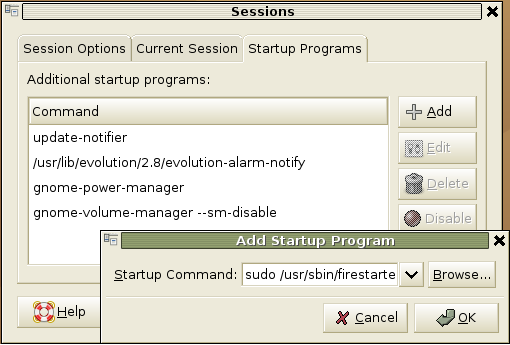
sudo /usr/sbin/firestarter
Working with Firewall Policy
Firestarted is having default policy does the following
New inbound connections from the Internet to the firewall or client hosts are blocked.
The firewall host is freely allowed to establish new connections.
All client hosts are allowed to establish new connections to the Internet, but not to the firewall host.
Traffic from the Internet in response to connection requests from the firewall or client hosts is allowed back in through the firewall.
This policy allows normal Internet usage such as web browsing and e-mail on the secured hosts, but blocks any attempts to access network services from the outside and shields the local network.
Creating your own Policy
Before Creating new policy you need to know inbound and outbound policy
Inbound policy
All inbound network traffic that is not in response to a connection established by a secured host is always denied. User created inbound policy is therefore permissive by nature and consist of criteria that when met lift the restrictions on the creation of new incoming connections. Changes to inbound policy are made on the inbound policy section of the policy page in Firestarter.
Outbound policy
The purpose of outbound traffic policy is to specify the types of network traffic that are allowed out from the secured network to the Internet. Firestarter has two modes of operation when it comes to implementing outbound policy, a permissive (which is the default) and a restrictive mode.
If you wan to create new policy you need to click on policy tab in this you need to make sure which policy you want in editing selection (inbound or outbound) in this example i have selected inbound traffic policy after that from the top menu click on policy and click on add you should see this in the following screen

Now it will popup a box asking for allow coonections from ip,host or network,enter the comment and click on add

The same way you need to add the outbound traffic policy you can see this in the following screen

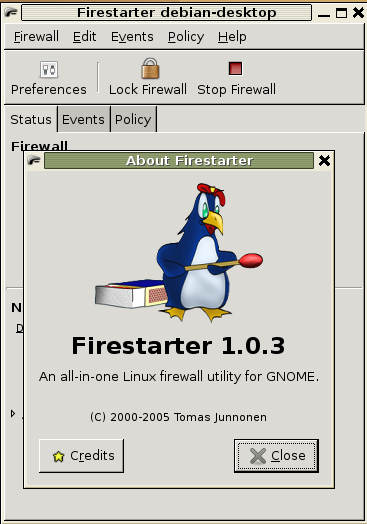
Firestarter version details
Thanks a lot for in depth tutorial along with the screen shots. I was bit hesitant about using a GUI tool for iptables/Firewall…. but looking at you post and following it really helped… and after using it for week now I’m fully convinced 🙂
Keep up the good work.
-TusharG
– im using firestarter in my ubuntu, i plug a third NIC for a new network, how do you allow firestarter not to block the 3rd NIC.
The line:
sudo apt-get install firestarter
does this:
Password:
Reading package lists… Done
Building dependency tree
Reading state information… Done
E: Couldn’t find package firestarter
but thanks anyway.
you need to make sure you have enabled universe and multiverse repositories in /etc/apt/sources.list file and then update the source list file using the following command
sudo apt-get update
and install firestarter
sudo apt-get install firestarter
Thanks for this man! awesome:-)
A big thanks
Ubuntu n00b here, and this helped greatly.
Hey man your are the best I am just a beginner with ubuntu and with guys like you helping out I love this windows sux…compared to the speed and flexibility of linux……thanx again bro
What about allowing a VPN passthrough?
Both the proxy and the PPTP will be leaking out your IP address to anyone who wants to find it and has basic knowledge. Neither PPTP or Proxies are secure by modern standards.
Hello, I installed Firestart on Lubuntu and I get an error message, after running it, saying that the log file is missing. Can I create it myself using the touch command? If so, what is the file name and the exact location? MAny thanks!