OpManager is a network monitoring software that can automatically discover your network; group your devices into intuitive maps, monitor devices in real-time and alert instantaneously on failure. It serves as a complete network monitoring solution by providing complete fault and performance functionality across your WAN and LAN infrastructure.
System Requirements
Processor: 32-Bit x86 Compatible
998 MHz and above
Memory: 999 MB
Disk space: 200MB
Operating System: RedHat 7.x and above, Debian 3.0 and above
Preparing Your System
You need to install the following packages as root
# apt-get install libgdbmg1 libexpat1
Create the following user and group
# adduser nobody
# groupadd nobody
Install Opmanager in Debian Etch
First you need to download the trail version of opmanager for Linux from here . Now you should have ManageEngine_OpManager_7_linux.bin file. You need to run this file using the following command as root
# ./ ManageEngine_OpManager_7_linux.bin
This will start the installation and you should see the following welcome installation shield you need to click next here

Now you should see the following License Screen select” I accept the …..” option and click Next

Next one is you should choose between trail version and Free edition. Here you need to choose trail version and click next

Select you Language and click next
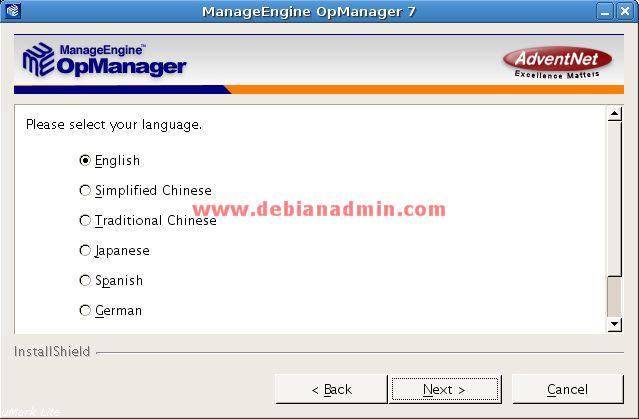
If you want to change the installation directory you can do so otherwise click next

Enter the web server port as 4430 because 443(https) might be using another application so I would suggest 4430 click next

Installation details screen click next
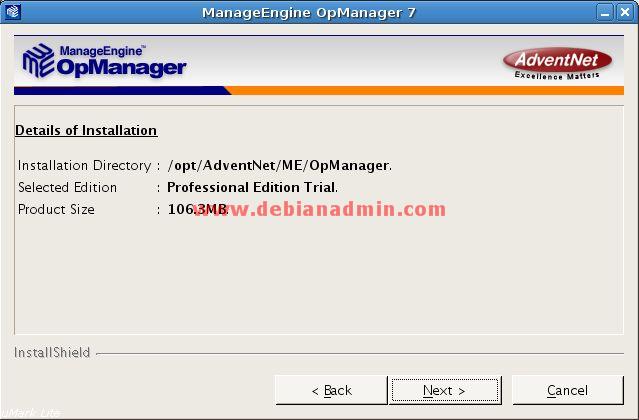
Opmanager Installation is in progress

Extracting Files are in progress
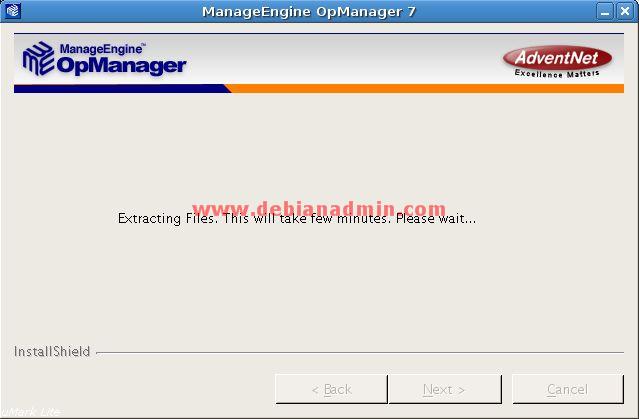
Installation Completed Screen click finish

The file libdb-3.2.so may not exist in your system. OpManager bundles this file under lib/backup under OpManager Installation directory. Copy this file to lib directory ie.(Execute this command under /opt/AdventNet/ME/OpManager – this is the default location where OpManager is installed under Linux distribution)
# cd /opt/AdventNet/ME/OpManager/
# cp lib/backup/libdb-3.2.so lib/
Now you need to start the opmanager using the follow command
# /opt/AdventNet/ME/OpManager/bin/StartOpmanagerServer.sh
Once it started you should see the following screen
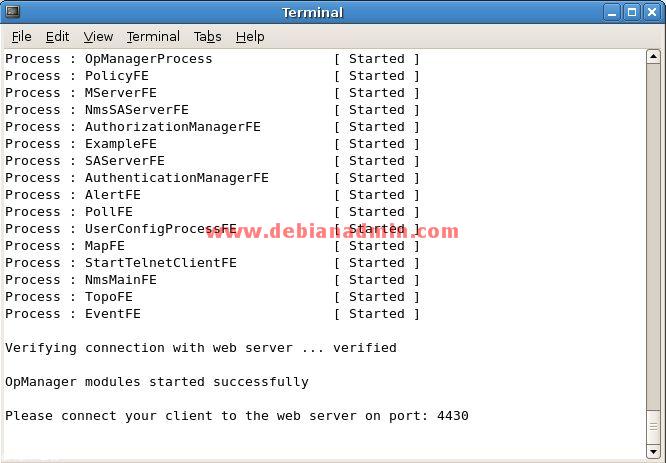
Now you need to go to open https://serverip:4430 in your web browser you should see the following screen here you need to login using the following details
Username: – admin
Password: – admin

Opmanager Startup Script
If you want to start your opmanager automatically when you reboot your server you need to download this script
Download opmanager file into /etc/init.d directory and run the following command
#chmod 755 opmanager
Now you need to update the startup script link using the following command
#update-rc.d opmanager defaults 50
Thats it your opmanager is ready to use
Now you need to check this manual for how add devices and services.