The Common UNIX Printing SystemTM, or CUPS, is the software you use to print from applications like the web browser you are using to read this page. It converts the page descriptions produced by your application (put a paragraph here, draw a line there, and so forth) into something your printer can understand and then sends the information to the printer for printing.
Now, since every printer manufacturer does things differently, printing can be very complicated. CUPS does its best to hide this from you and your application so that you can concentrate on printing and less on how to print. Generally, the only time you need to know anything about your printer is when you use it for the first time, and even then CUPS can often figure things out on its own.
Install CUPS printer server in Debian
#apt-get install cupsys cupsys-driver-gutenprint foomatic-db-gutenprint foomatic-filters fontconfig libtiff4 libfreetype6
NOTE:- If your network use DHCP it’s a good idea to set up your server to use static IP. I will use as 172.20.22.74 for the server and 172.20.22.150 for administration workstation.
Configure CUPS
Default configuration file located at /etc/cups/cupsd.conf in this file you need to configure the following sections to make it work.
First, check the encryption setting and change
# Default authentication type, when authentication is required…
DefaultAuthType Basic
to
# Default authentication type, when authentication is required…
DefaultAuthType Basic
DefaultEncryption IfRequested
Then we need to tell it to listen for the server change
# Only listen for connections from the local machine.
Listen localhost:631
Listen /var/run/cups/cups.sock
to
# Only listen for connections from the local machine.
Listen localhost:631
Listen 172.20.22.74
Listen /var/run/cups/cups.sock
We need it to be visible to the entire network
# Show shared printers on the local network.
Browsing On
BrowseOrder allow,deny
BrowseAllow @LOCAL
what machines that may access the server change
# Restrict access to the server…
<Location/>
Order allow,deny
Allow localhost
</Location>
to
# Restrict access to the server…
<Location/>
Order allow,deny
Allow localhost
Allow 172.20.22.*
</Location>
And the same for the configuration files change
# Restrict access to configuration files…
<Location /admin/conf>
AuthType Basic
Require user @SYSTEM
Order allow,deny
Allow localhost
</Location>
to
# Restrict access to configuration files…
<Location /admin/conf>
AuthType Basic
Require user @SYSTEM
Order allow,deny
Allow localhost
Allow 172.20.22.150
</Location>
Other configuration i left default one so need to change anything.
Now you need to restart CUPS using the following command
#/etc/init.d/cupsys restart
You should now be able to connect to the CUPS web interface from the administrator workstation (IP 172.20.22.150 in this example) by pointing your web browser at http://172.20.22.74:631/ once it opens you should see the following screen

If you got the correct drivers installed and your printer is connected to the server, Now you need to add your printer under the “Administration” tab.Setup your printer and finish the setup and verify that it works by printing the CUPS test page.

Setting up the CUPS clients
The CUPS clients are easy to set up and the config is identical on all machines.You need to install the following packages for client
#apt-get install cupsys cupsys-client
Configuring CUPS Client
You need to create /etc/cups/client.conf as root
#touch /etc/cups/client.conf
Now you need to edit the /etc/cups/client.conf file
#vi /etc/cups/client.conf
Enter the following information the server IP and the encryption requirement
# Servername
ServerName 172.20.22.74
# Encryption
Encryption IfRequested
Save the file, then restart the client
#/etc/init.d/cupsys restart
Adding Printers
Now you need to add printer in GNOME go to Desktop—>Administration—>Printing

Once it opens you should see the following screen
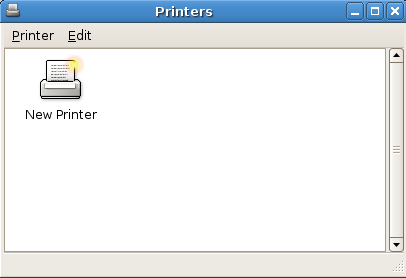
Select Printer—>Add printer

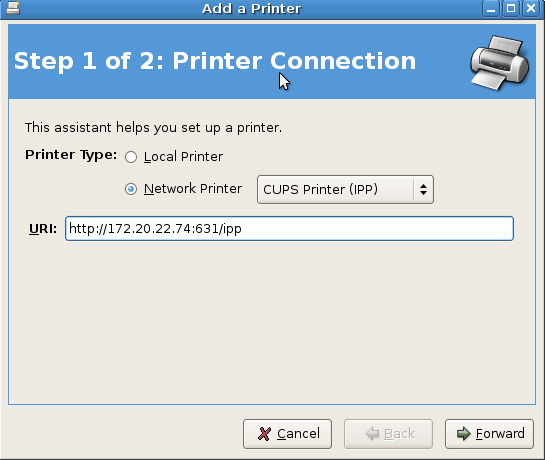
Once it opens you should see the following screen

In the above screen select Network Printer option,select CUPS Printer and enter the URl and click on Forward
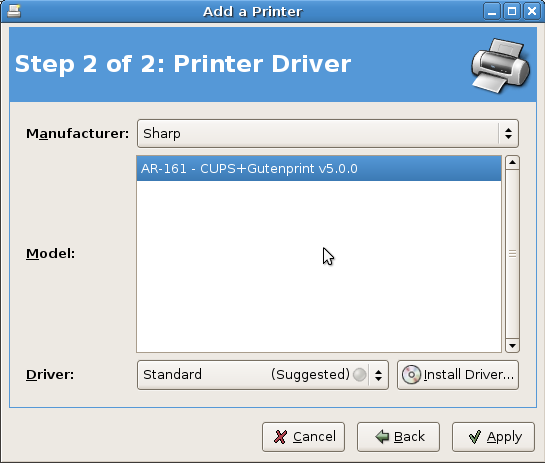
Select your printer manufacturer and model or install printer drivers and click on apply
After finishing the setup you should see the similar to the follwoing screen now your printer is ready for printing.

Couple a dumb questions:
Install CUPS printer server in Debian
1. Does one need one machine for a CUPS printer server in Debian and another for a printer client? What if one wants to set up CUPS for Debian on a single machine, or else on machines where each computer has its own dedicated printer ???
#apt-get install cupsys cupsys-driver-gutenprint foomatic-db-gutenprint foomatic-filters fontconfig libtiff4 libfreetype6
Does one need to install ALL of these to get CUPS working?
Which of these (if any of these) can one leave out?
Briefly, what do each of these packages actually do?
NOTE:- If your network use DHCP it’s a good idea to set up your server to use static IP. I will use as 172.20.22.74 for the server and 172.20.22.150 for administration workstation.
What exactly do these static IP addresses represent??
Aren’t these actually translated (NAT/masqueraded) non-routable individual IP addresses within the particular 172.20.22.00 class B network used (default mask 255.255.0.0) ?
Isn’t the more common case for a private network using DHCP IP-assignment, a default class C network range in the 192.168.0.0/24 series (mask=255.255.255.0) ???
Will make a first attempt to answer these (PFY?) questions as well as point you to a number of well-known references.
> 1. Does one need one machine for a CUPS printer server in Debian
> and another for a printer client?
The title of this article is ‘Setup CUPS (Common UNIX Printing System) Server and Client in Debian’. From the title, this probably means that the shared printer is physically somehow connected to the server machine and the local or remote client is a separate machine.
This is certainly the case used in the primary developer of CUPS’s, Michael R. Sweet’s, ‘Using Network Printers found at http://www.cups.org/documentation.php/network.html
> What if one wants to set up CUPS for Debian on a single machine, or > else on machines where each computer has its own dedicated printer > ???
In that case, you may wish to go through the less than a dozen steps at the Linux Foundations’s ‘OpenPrinting CUPS Quick Start’ quide found out http://www.linux-foundation.org/en/OpenPrinting/Database/CUPSDocumentation
The cups.general newsgroup at http://www.cups.org/newsgroups.php?gcups.general+T may be worthwhile perusing as well
A more complete way of answering this one-printer-to-one-machine question before and after installation is probably to take Kurt Pfeifle’s adamant advice of
Read the CUPS documentation!
-and-
Read the Manual Pages!
as described in the actual CUPS ‘Troubleshooting-CUPS-and-Asking-for-Help HOWTO’ found at http://www.cups.org/cups-help.html
> > #apt-get install cupsys cupsys-driver-gutenprint
> > foomatic-db-gutenprint foomatic-filters fontconfig libtiff4
> > libfreetype6
> Does one need to install ALL of these to get CUPS working?
> Which of these (if any of these) can one leave out?
> Briefly, what do each of these packages actually do?”
A possibly better way to answer these questions all at once is to visit each of these packages’ descriptions for your specific Debian version
cupsys
cupsys-driver-gutenprint
foomatic-db-gutenprint
foomatic-filters
fontconfig
libtiff4
libfreetype6
To find this info,
for Etch go to http://packages.debian.org/stable/allpackages
for Lenny go to http://packages.debian.org/testing/allpackages
for Sid go to http://packages.debian.org/unstable/allpackages
> > NOTE:- If your network use DHCP it’s a good idea to set up your
> > server to use static IP. I will use as 172.20.22.74 for the
> > server and 172.20.22.150 for administration workstation.
>
> What exactly do these static IP addresses represent??
> Aren’t these actually translated (NAT/masqueraded) non-routable
> individual IP addresses within the particular 172.20.22.00 class B > network used (default mask 255.255.0.0) ?
> Isn’t the more common case for a private network using DHCP
> IP-assignment, a default class C network range in the
> 192.168.0.0/24 series (mask=255.255.255.0) ???
You are referring to RFC 1918 ‘Address Allocation for Private Internets’ found at http://www.ietf.org/rfc/rfc1918.txt
The 172.20.22.74 server and the 172.20.22.150 admin workstation are both within the 172.20.22.0 segment, indicating that this is probably a good thing for a group of host devices in close proximity to one another (e.g., one department’s networked PC’s on a floor.) There then could be as many other internal network segments as needed within the greater private 172.20.0.0 network (e.g., maybe on other floors or sections)
Thanks for helping me out to set up CUPS printing for my home office server PC and a client laptop.
It works perfect.
In order to be able to make Administration changes in the CUPS GUI, I had to add “Allow 172.20.22.150” under #Restrict access to the admin pages in the cupsd.conf
Here:
# Only listen for connections from the local machine.
Listen localhost:631
Listen 172.20.22.74
hi, andar here, i just read your post. i like very much. agree to you, sir.
great post. nice sharing. Its very helpful to my project.
As of 09/28/10 the Squeeze version of Debian no longer uses cupsys but cups and cups-driver-gutenprint. Your apt-get statement (Under Install CUPS printer server in Debian) needs to be changed.
Thanks for post. Works like a charm.
I tried to connect printer through CUPS but it didnt get connect throught CUPS
and IS PPD or drivers(which one) required
I have a scenario let us assume that my printer IP address is A and my linux IP address is B in which CUPS is installed.
So could you please tell me how should i connect printer.
and from where i can get PPD file for HP LaserJet M5035 MFP
please ……:):)
Hi there, I have troubles connecting remotely to CUPS.
Everything works locally if I connect to http://127.0.0.1:631
but if I add the line “listen 192.168.1.7” (IP of the print server) cupsd will not start giving the error “cupsd: Child exited on signal 6”.
please help
# Raspberry Pi running uptodate arch linux
Hi, would you mind to Update your tutorial, e.g. replace cupsys with cups?
Best regards.
Thank you sooo much! After a night of searching for a good tutorial, THIS ONE, actually got me working on my Raspberry Pi!