vino is VNC server for GNOME.VNC is a protocol that allows remote display of a user’s desktop. This package provides a VNC server that integrates with GNOME, allowing you to export your running desktop to another computer for remote use or diagnosis.
By default ubuntu will come with vino-server so it is very easy to configure to enable remote desktop sharing in your ubuntu machine.If you want to access ubuntu machine remotely you need to login in to your ubuntu system.
Important note :-
Remote Desktop will only work if there’s a GNOME login session.Leaving your computer with an unattended GNOME login session is not secure and not recommended.
Some Tips
1) You can lock your screen using System—>Quit

Once you click on quit you should see the following screen here you need to select lockscreen

2) switch off your monitor when computer is left unattended
Configuring Remote Desktop
First you need to go to System -> Preferences -> Remote Desktop

Once it opens you should see the following screen

In the above screen you need to configure remote desktop preferences for sharing and security
For Sharing
you need to tick the box next to the following two options
Allow other users to view your desktop
Allow other users to control your desktop
For Security
you need to tick the box next to the following two options
Ask you for confirmation (If you tick this option some one need to click on allow from remote desktop once it connected if you don’t want you can untick this option)
Require the user to enter this password:
Password: Specify the password

Connecting from Ubuntu Machine
Open your terminal from Applications—>Accessories—>Terminal and enter the following command
vncviewer -fullscreen 192.168.2.23:0
now you should see the following message asking for password enter the password after complete success you can see VNC authentication succeeded message and starting remote desktop
VNC viewer version 3.3.7 – built Jul 4 2006 10:04:48
Copyright (C) 2002-2003 RealVNC Ltd.
Copyright (C) 1994-2000 AT&T Laboratories Cambridge.
See http://www.realvnc.com for information on VNC.
VNC server supports protocol version 3.7 (viewer 3.3)
Password:
VNC authentication succeeded
If you want to quit vncviewer
Press ‘F8’ and select Quit viewer
Connecting from Windows machine
If you are trying to connect from your windows machine you need to install vncviewer of your choice i have installed from here http://www.realvnc.com/download.html.Install this program once you install this you can opem from start—>All programs—>RealVNC—>VNC Viewer 4—>Run VNC Viewer once it opens you should see the following screen here enter the remotemachine ipaddress:0 format and click ok

Now it will prompt for password enter your password and click ok

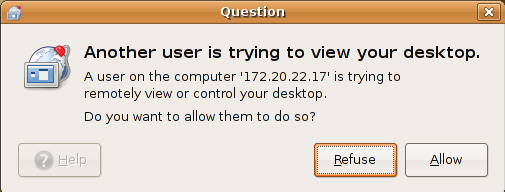
Now on the remote machine you should see the following screen asking for permission to allow this connection you need to click on allow this will comeup only if you tick “Ask you for confirmation” option under sharing
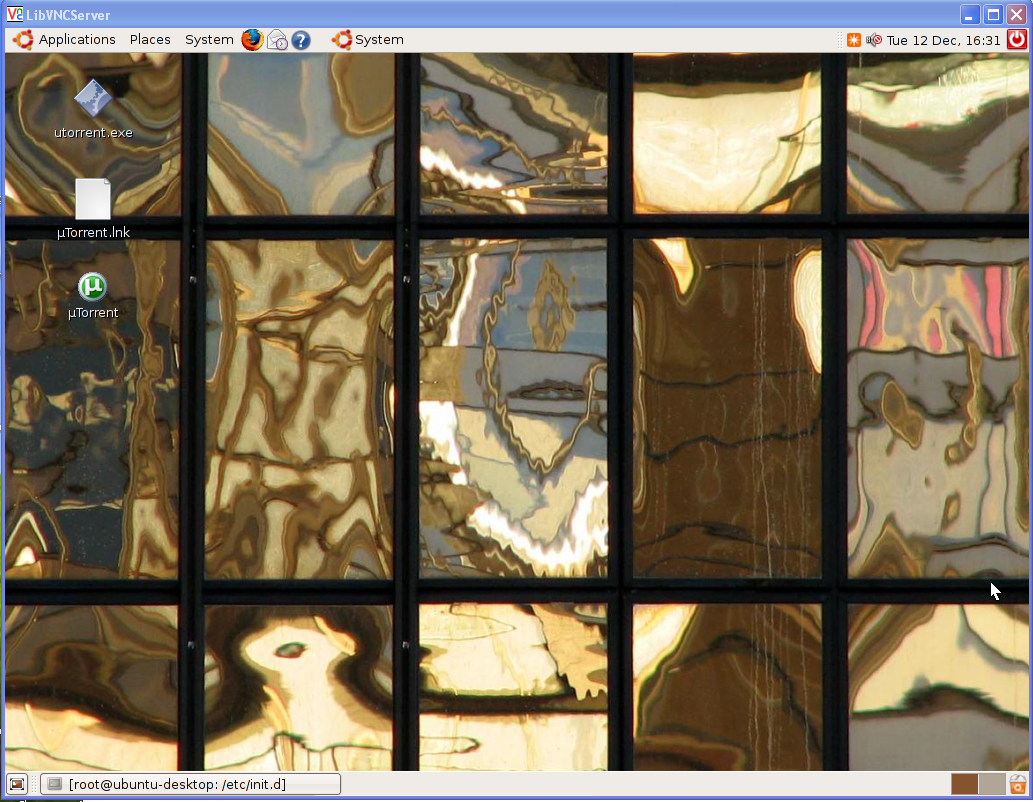
Once it connected you should see the remote machine desktop like the following screen
Everything went as written except where I enter the IP address of the host I’m trying to access.
In your example you used:
vncviewer -fullscreen xxx.xxx.xxx.xxx:0
But I had to use:
vncviewer -fullscreen xxx.xxx.xxx.xxx:1
instead.
It may not be obvious to some – substitute the IP # of the machine you seek to access for the “xxx.xxx.xxx.xxx” part.
Also, Ubuntu has a graphical client available from the menu: Applications->Internet->Terminal Server Client.
HTH.
I don’t know what is wrong with my setup, but if I turn this on and use it for any length of time (seems an hour minimum) vino-server seems eat up all my RAM and swap file and pretty much stall my machine. I’ve not done anything more custom than what was described here; if you experience the same things you’ll either need to restart or kill the vino-server process.
I’ve enabled Remote Desktop, enabled the connection and security and installed Chicken of the VNC on my Powerbook, but when I try to connect (via my internal network, 192.168.x.xxx) I get a spinning wheel until it times out. Trying a bad address causes an immediate “Server not found,” so it seems to know there’s a machine out there, but it can’t quite start. Any ideas? Filled with bafflement, am I.
Thanks.
hi,,
I try with real VNC viewer
my ubunthu desktop is showing on my xp desktop , but iam not able to control ubunthu desktop
it hanging after the first screen
not even refereshing the screen…
plezs send me solution
Is there a way of remote desktop that include login (ie, with no open session)?
Roberto, you’d need to tunnel through an ssh session. Just search for ssh tunneling.
Thanks very much for this. The pictures are a big help. I appreciate you taking the time to do this.
I got the VNC connection to work but the GUI didn’t show up. All I can see is a command line. Is there some setting that I have wrong??
NoMachine’s NXclient works great as an alternative to the built in vnc. All comms are over SSH and the refresh rate is incredible.
http://www.nomachine.com/select-package.php?os=linux&id=1
When I try to connect ubuntu to vista I enter: vncviewer –fullscreen 192.168.0.3:0
And have next error:
VNC Viewer Free Edition 4.1.1 for X – built Apr 16 2008 13:23:14
Copyright (C) 2002-2005 RealVNC Ltd.
See http://www.realvnc.com for information on VNC.
Thu Jan 22 18:54:39 2009
CConn: connected to host 192.168.0.3 port 5900
CConnection: Server supports RFB protocol version 4.0
CConnection: Using RFB protocol version 3.8
CConnection: No matching security types
main: No matching security types
What can I do to solve this problem? thanx
Hi,
thanks for this. I am working from ubuntu on a laptop to a debian+XAMPP+drupal (plus desktop) on the back-end. Debian does not have this neat tool from what I can see, so had to set it up from the command prompt – I prefer Debian, but I couldn’t get it to work with the wireless, and Ubuntu seemed able to configure the fwcutter broadcom driver relatively painlessly.
I found that appending to the IP is what worked for me, ( didn’t). I am not clear how to terminate the session from the laptop – I tried logging out from within the laptop session, but didn’t get back to the session I launched from, so had to go back and kill the vnc server at the server. The way this set up on debian I end up going in as root – I’d have preferred to go in as user, and then su from a terminal within the session. Perhaps that is because I set it up from root?
Is there any way of launching this running from the command prompt on the client, rather than in a gnome session? What are the parameters for running the remote session as a window within the client, rather than in full-screen? I have hunted around, but would be grateful if you could point me towards any documentation.
Mish
apologies, it seems to have removed the 1 and the 0 from the respective places in my text – appending colon 1 instead of 0 to the IP worked for me as well
apologies again – F8 brings up menu allowing to quit full-screen mode (leaving out fullscreen in the command launches as a window). M
I just put together a cheap computer kit. Bought an Hitachi 1TB drive for 89 bucks. Got a total of 260 bucks in the machine. Running ubuntu 8.1,no monitor. I ripped my entire cd collection into the Linux box from my wireless laptop and plugged the audio out into a stereo system that feeds my screened in porch out back. I use VNC Viewer on my wireless laptop pc and control the desktop on the Linux box remotely to shuffle or pick any of the music I ripped into it. You can even control volume! It is very cool! I can even swith applications on the Linux box and stream Pandora radio from ubuntu if I get tired of my cd collection.
Remote Desktop options are not working as specified in Remote Desktop preferences.
I set the security preferences to ask for a password. However, when I tried connecting thru Real VNC, I was not asked for a password!
Then I tried to disable access thru VNC altogether, by unchecking the “Allow Other users to view your desktop” checkbox. Then tested connecting thru Real VNC – again I was able to connect!
This is totally insecure. This should be removed from standard Ubuntu installations if this bug is not fixed because it is a major security hole.
i install sucessfully this vnc-java
$vncviewer -fullscreen 192.168.1.2:0
it will display a dialog box with
text box for password
i entered all my passowords
root, that ip machine add etc.
but it will display an error
like
***************************************
fullscreen 5900
java.net.UnknownHostException: -fullscreen
at java.net.AbstractPlainSocketImpl.connect(AbstractPlainSocketImpl.java:158)
at java.net.SocksSocketImpl.connect(SocksSocketImpl.java:384)
at java.net.Socket.connect(Socket.java:546)
at java.net.Socket.connect(Socket.java:495)
at java.net.Socket.(Socket.java:392)
at java.net.Socket.(Socket.java:206)
at rfbProto.(rfbProto.java:93)
at vncviewer.connectAndAuthenticate(vncviewer.java:193)
at vncviewer.run(vncviewer.java:122)
at java.lang.Thread.run(Thread.java:636)
java.net.UnknownHostException: -fullscreen
*************************************
plz help me
wat i ve to do?
thanx in advance
The vnc java applet does not support full screen AFAIK, hence your error message: java.net.UnknownHostException: -fullscreen
To lev-mike:
If you use a Free Edition, legacy or third party VNC Viewer to connect to a VNC Server that requires encryption or uses any of the advanced features of Enterprise Edition, such as native domain authentication, then you will get the ***No matching security types*** error. The best solution is to upgrade your VNC Viewer to the most recent version of Enterprise or Personal Edition.
My Problem is that when i connect using vnc to my remote server destop then it is connected but it ask permission at server to allow or Refuse the request. But how can i allow it from client machine. Is it possible to allow using SSH or any other way?
if you really have to comment on something like this then i really don’t think you should be using a computer! Jesus!
Quote
cosmolee says:
March 15, 2007 at 6:03 am
Everything went as written except where I enter the IP address of the host I’m trying to access.
In your example you used:
vncviewer -fullscreen xxx.xxx.xxx.xxx:0
But I had to use:
vncviewer -fullscreen xxx.xxx.xxx.xxx:1
instead.
It may not be obvious to some – substitute the IP # of the machine you seek to access for the “xxx.xxx.xxx.xxx” part.
Also, Ubuntu has a graphical client available from the menu: Applications->Internet->Terminal Server Client.
HTH.
/Qoute