Nano command line editor is a text editor that can be run from a command prompt via a telnet or ssh session. It allows you to create or edit HTML, text, scripts or practically any text file. Although it is not as easy as a GUI based editor you may be used to it does afford you the luxury of being able to create and edit your site files from almost any computer in the world.
nano is a small, free and friendly editor which aims to replace Pico,the default editor included in the non-free Pine package. Rather than just copying Pico’s look and feel, nano also implements some missing (or disabled by default) features in Pico, such as “search and replace” and “go to line number”.
Install nano in Debian
#apt-get install nano
Now we are going to craete a test file in nano editor
At the prompt type the following and hit enter.
#nano test.htm

Now you have launched nano with a new blank file named “test.htm”. If you wanted to edit an existing file you would type “nano” and the name of the file. Now you can see how the window has changed.
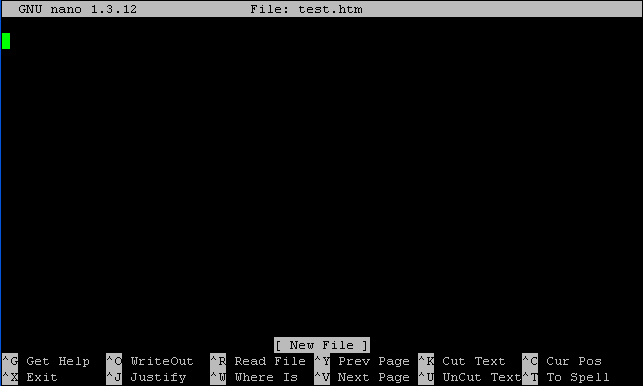
The first thing you may notice is the “GNU nano 1.3.12” in the upper left corner. GNU Nano 1.3.12 is telling you the program and it’s version.
In the center of the top bar it tells you what file you are editing.
At the bottom of the screen you should see a bunch of commands. The caret (^) signifies holding down the control key and typing the letter. For example “{cntrl} g” (^G) with display a Help file with a bunch of information about using nano. “{cntrl} x” (^X) will exit the program and return you to the prompt. “{cntrl} o” (^O) or (f3) will write or save the file to the servers harddrive.
You should see the prompt just below the “GNU nano 1.3.12” text. This is where you can begin typing.

This is test web page we are creating for our test purposes.
Now we want to write or save the file. We do this by holding down the {ctrl} key and pressing “o” or “f3” the function key.
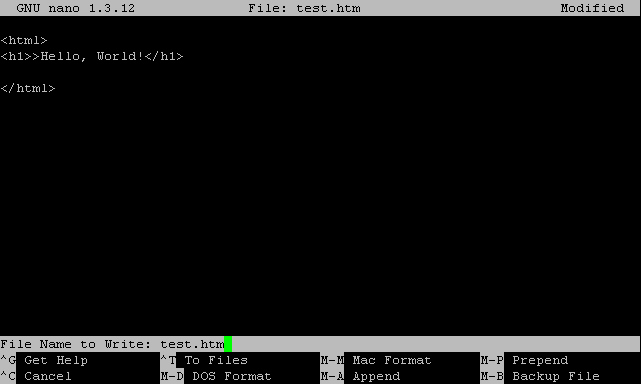
Notice how the screen has changed towards the bottom left. It is now asking you if you want to save this file with this name. If you do press enter. If you do not either hit {escape} or enter the name you want the file named as.
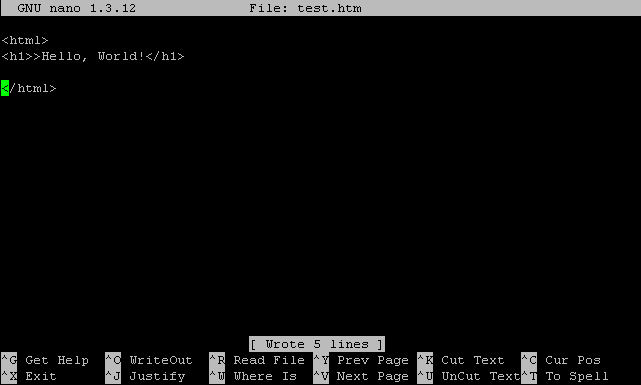
Now you need to hit enter and saved the “test.htm” file and you can see at the middle bottom of the screen it says “[ Wrote 5 line ]”. There was only one line in this file and nano talks in lines.
The last step is to quit nano, {ctrl} x. If everything has gone well we should be back at the command prompt.
If you want more details you need to check nano editor man page
Comando Nano.
hola Necesito copiar desde consola una linea del texto, y luego pegarlo en la consola.
yo llegue hasta esto,
desde consola
#nano juan.txt
seleciono con ctrl+6
corto ctrl+K
salir ctrl + x
pero cuando quiero pegar en la consola
# (que comando utilizo para pegar lo que hay en la portapapelera)
# shift + insert (no funciona)
#??????
ctr+shif+v
apt-get install nano unable to locate package